
How to Run in Octopath Traveler 0: Dash Controls Guide
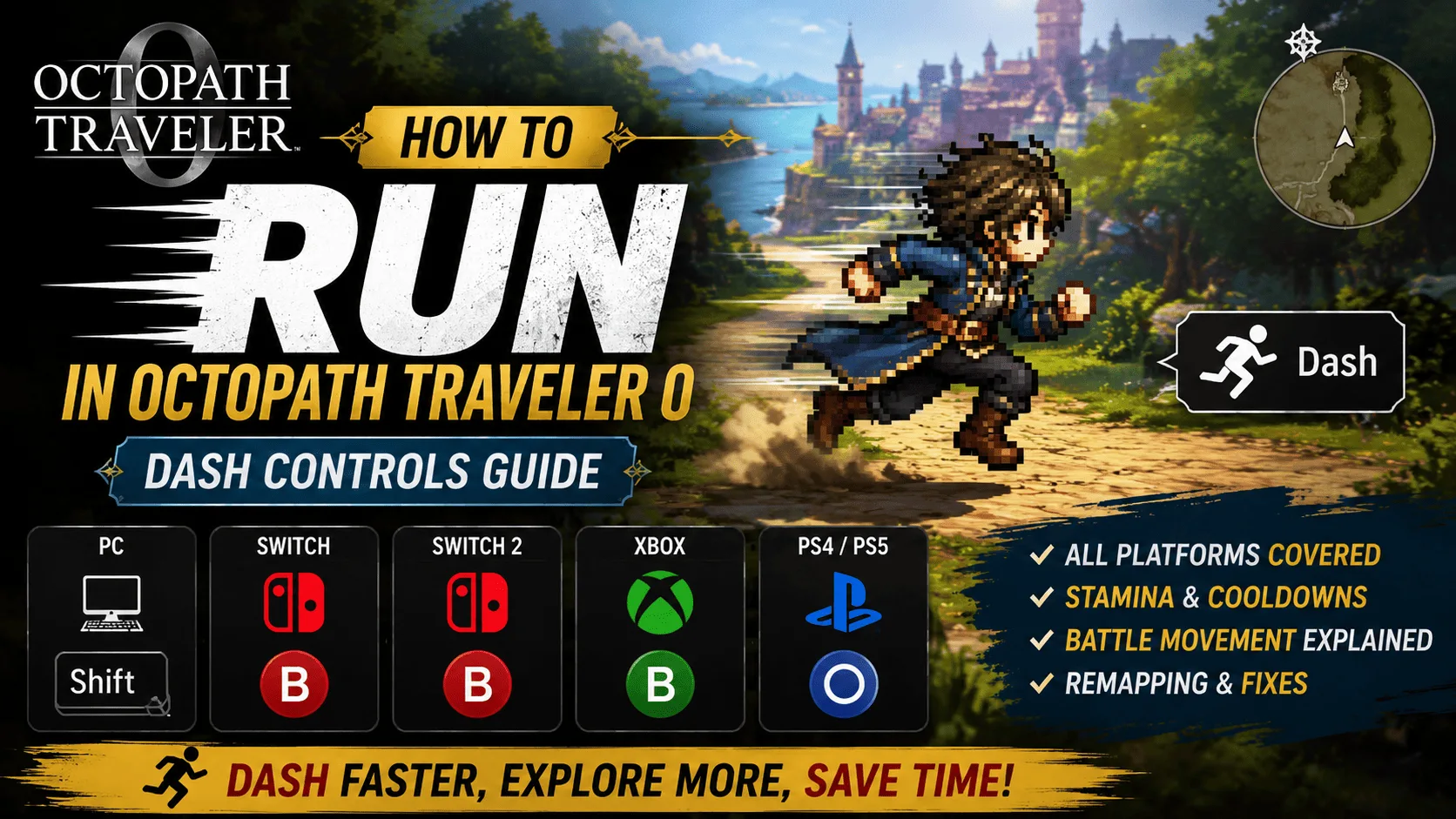
Here’s how to run in Octopath Traveler 0: move normally and activate Dash using your platform’s assigned button. PC players use Shift, Switch and Xbox players use B, and PlayStation players use Circle.
The main source of confusion is that players often call this action “running,” while the game’s control terminology refers to it as Dash. This guide covers the Dash button on PC and consoles, stamina and cooldowns, battle movement, remapping, Steam Input troubleshooting, and how the system compares with Octopath Traveler 1 and 2.
How to Run in Octopath Traveler 0
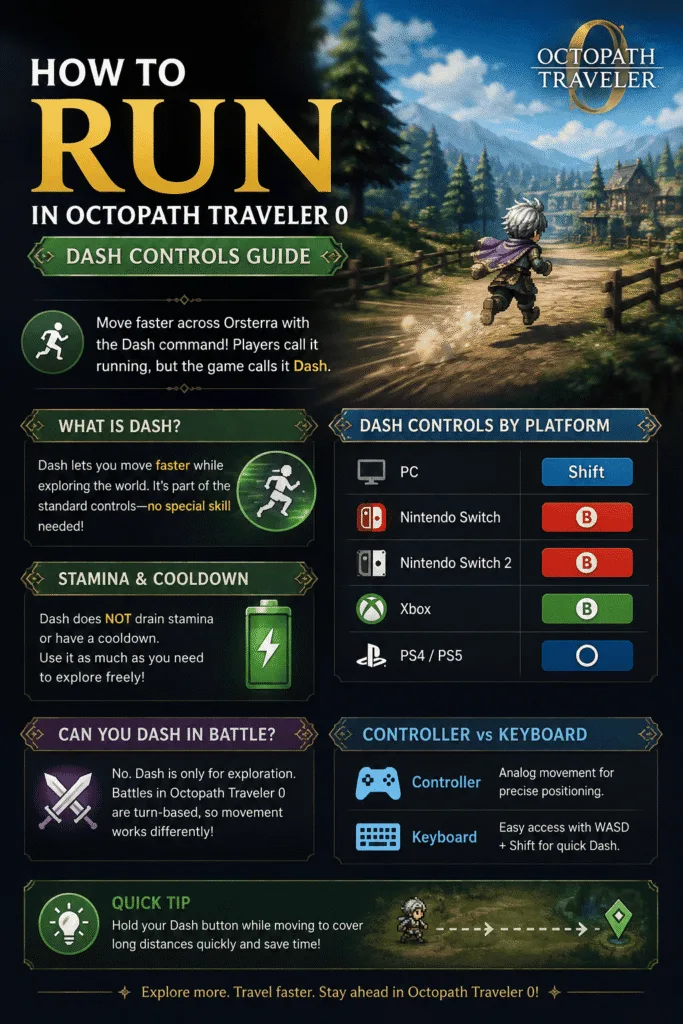
The easiest way to run in Octopath Traveler 0 is to activate the Dash command while moving through an exploration area.
On PC, the default input is Shift. On Nintendo Switch and Xbox, Dash is assigned to the B button, while PlayStation players use Circle.
The command is part of the standard exploration controls, so you do not need to unlock a special skill before using it. Once you’re moving around the world, Dash can be used to increase your movement speed and make longer journeys less tedious.
Default Dash Controls
| Platform | Default Dash Input |
|---|---|
| PC | Shift |
| Nintendo Switch | B |
| Nintendo Switch 2 | B |
| Xbox | B |
| PS4 / PS5 | Circle |
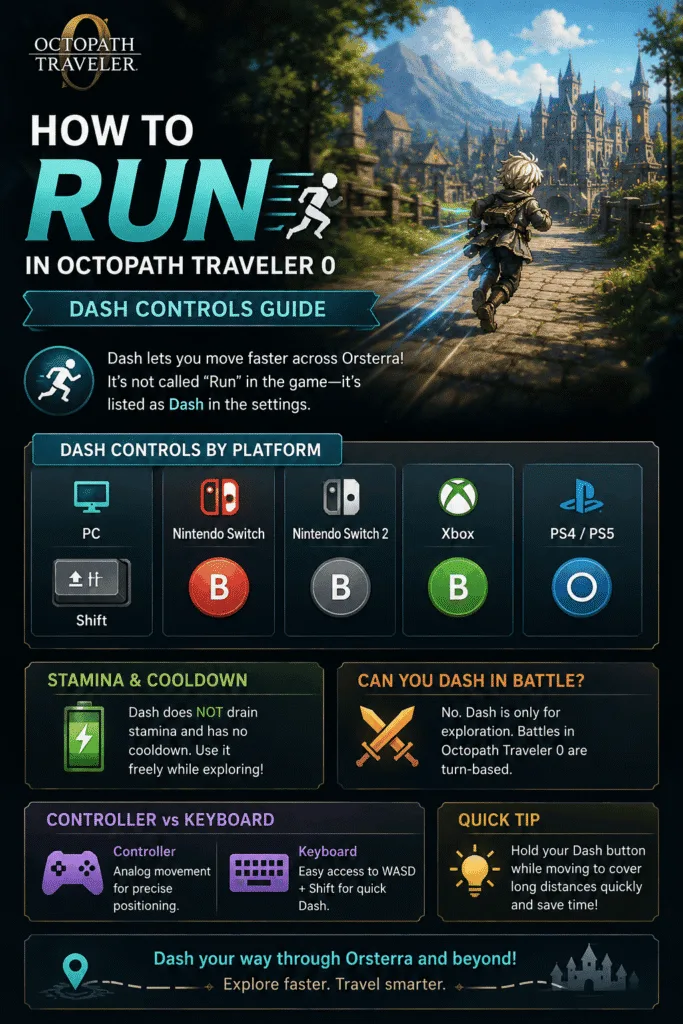
For newcomers, the most important thing to remember is simple: Run is the way players commonly describe it, but Dash is the control term you’ll want to look for in the settings.
Is It Called “Run” or “Dash” in the Game?
If you’re searching the control layout for a menu entry named “Run,” you won’t find one — the game labels it Dash.
The same terminology carries over from Octopath Traveler and Octopath Traveler II, which also use Dash for faster exploration movement. The term also appears in different forms across guides and player discussions, including running in Octopath Traveler 0, Dash controls, Dash button, and movement speed. They all refer to the same basic function: players call it running, while the control system calls it Dash.
Dash Controls by Platform (PC, Switch, Switch 2, PS4/PS5, Xbox)
The default layout is straightforward once you know your platform.
On PC, the Shift key handles Dash. Since movement is normally handled through WASD, Shift is within easy reach and works naturally with keyboard controls.
On Nintendo Switch, Dash is assigned to B. On Switch 2, the Dash input follows the same basic Nintendo-style layout.
On Xbox, the Dash control is also B.
On PS4 and PS5, the equivalent input is Circle.
Controller vs Keyboard Controls
Both input methods work well, but they offer different advantages.
A controller gives you analog movement, which can make precise positioning easier when you’re approaching NPCs, doors, treasure chests, or other interactive objects.
Keyboard controls give you straightforward digital movement and make the Shift-based Dash input easy to combine with WASD.
The choice mainly comes down to comfort: controllers offer analog movement, while keyboard users get quick access to WASD and Shift. For players spending a lot of time moving between locations, familiarizing yourself with the default layout matters more than which method you pick.
Does Dashing Drain Stamina or Have a Cooldown?
One common question about the Dash mechanic is whether it works like a traditional sprint system.
Some RPGs use a stamina bar that limits how long the player can run. Others give sprinting a cooldown before it can be used again.
The normal exploration Dash system does not work like a stamina-management ability. There is no standard stamina meter that you need to manage simply because you’re moving faster.
That means players can use the movement option when crossing areas without worrying about saving it for a later part of the route. That’s the short answer to how to run in Octopath Traveler 0 without needing to manage stamina.
Dash functions as an exploration movement command rather than a combat ability, so there is no reason to treat it like an SP or Boost-based skill.
The result is a straightforward exploration loop:
Normal movement → activate Dash → travel faster → slow down when needed.
If you’re crossing a familiar road or returning to a previously visited location, the faster movement option can save a noticeable amount of time.
Can You Dash During Battles?
Dash is an exploration movement mechanic, not a normal battle-movement command.
Octopath Traveler 0 uses turn-based combat, so battles are built around selecting actions rather than directly moving characters around an arena.
During exploration, you control your character’s position freely. During combat, your attention shifts to commands, attacks, skills, Boost, and other battle decisions.
This means pressing the Dash button during a battle and seeing no response does not automatically indicate a controller problem. The game is simply not using that movement command in the same way while you’re fighting.
Exploration vs Battle Movement
Exploration: free movement, Dash, interaction, navigation.
Combat: turn-based commands, attacks, skills, Boost, and positioning decisions.
Keeping these systems separate makes the controls much easier to understand.
Is There an Auto-Run or Toggle Option?
Players who prefer not to repeatedly hold a button may wonder whether the game provides an auto-run or permanent Dash toggle.
The standard movement setup uses Dash as a manual command while moving rather than a permanent sprint or auto-run toggle. If you’re coming from a modern RPG with a dedicated sprint toggle, it’s worth checking your platform’s control settings for any toggle or accessibility options, since availability can vary by version.
For longer journeys, Dash is simply the faster way to move through the current area. Fast travel is a separate system used when you want to reach an eligible destination without crossing the route on foot.
How to Remap the Dash Button
The default controls work for most players, but not everyone prefers the same layout. This flexibility matters if you’re customizing how to run in Octopath Traveler 0 to fit your own control preferences.
On PC, some players may find the Shift key uncomfortable depending on their keyboard position or personal control habits. Controller users may also prefer a different button arrangement.
The game’s control settings are the first place to check when you want to change the layout.
A good remapped Dash input should be:
- easy to reach while moving
- comfortable during long sessions
- separated from frequently used commands
- consistent with the rest of your control scheme
For a WASD setup, keeping the Dash command near the movement keys usually makes the most sense.
Controller players have more freedom to build a layout around their preferred face buttons or other inputs.
There’s no universal “best” remap. The goal is simply to make faster movement feel effortless rather than forcing yourself to remember an awkward button combination.
Fixing Dash and Controller Issues on PC
This section covers common fixes if you’re still figuring out how to run in Octopath Traveler 0 on PC with a controller.
If the Dash input works on keyboard but your controller does not respond correctly, Steam Input is one setting worth checking, since conflicts between Steam’s configuration and the game’s native controller support can sometimes create unexpected behavior. Steam’s interface can change between updates, so rather than treating one fixed setting as a universal fix, check Steam’s Controller settings and test the game with Steam Input enabled and disabled to see which works for your setup:
- Close the game.
- Open your Steam Library.
- Right-click Octopath Traveler 0 and open Properties.
- Select the Controller section.
- Toggle the Steam Input override and test the game after each change.
- Recheck the game’s own control configuration.
If Dash specifically isn’t responding while normal movement works, start with the game’s own settings: confirm Dash hasn’t been remapped, check your controller profile, and — if you’re on keyboard — test the Shift key on its own, since another program may be intercepting the input.
How Dash Compares to Octopath Traveler 1 & 2
The series has traditionally used a straightforward faster-movement command during exploration, so returning players don’t have to learn an entirely new movement philosophy.
| Game | PC | Switch | PlayStation |
|---|---|---|---|
| Octopath Traveler | Shift | B | Circle |
| Octopath Traveler II | Shift | B | Circle |
| Octopath Traveler 0 | Shift | B | Circle |
The exact presentation can vary between versions and platforms, but the core idea remains familiar.
That makes convenient movement particularly valuable because you’re spending plenty of time traveling between destinations, interacting with NPCs, exploring routes, and revisiting locations.
Exploration Tips for Faster Movement
Once you’ve got the basics of how to run in Octopath Traveler 0 down, here are a few practical tips to use Dash more efficiently.
The simplest rule: Dash on long, open routes — switch to normal movement near NPCs, chests, doorways, or anything you need to interact with. Dash covers ground fast but makes precise positioning harder, so slowing down near interaction points saves you from overshooting.
Random encounters also factor in. If you’re farming EXP or JP, moving at normal speed on a route lets battles happen naturally. If you’re just retracing ground you’ve already cleared, Dashing through it saves time without any real downside.
Frequently Asked Questions
Quick answers to common questions about how to run in Octopath Traveler 0
Does Octopath Traveler 0 have auto-run?
The standard movement system uses the Dash input while you’re moving rather than relying on a permanent auto-run mode. Check the control settings for the movement options available on your platform.
Can you Dash in battle?
No. Dash is an exploration movement command. Battles use the game’s turn-based command system instead of free character movement.
How do you run in Octopath Traveler 0 on PC?
The default PC Dash button is Shift. You can check the game’s control settings if you want to change the keyboard layout.
Can you remap Dash in Octopath Traveler 0?
Yes. The game’s control settings can be used to adjust the input layout, which is useful when the default Dash button does not feel comfortable.
Final Takeaway: How to Run in Octopath Traveler 0
The answer to how to run in Octopath Traveler 0 is simple: use the game’s Dash command while exploring.
The default input is Shift on PC, B on Nintendo Switch and Xbox, and Circle on PlayStation. Dash is designed for exploration rather than normal battle movement, and it does not function like a conventional stamina-based combat ability.
Players can also review their Control Settings if the default layout feels uncomfortable. On PC, checking Steam Input can be useful when a controller behaves unexpectedly.
Fans of Octopath Traveler 1 and 2 should find the controls familiar, while newcomers only need to remember one important term: what players commonly call running is presented as Dash in the control scheme.
Once that button becomes second nature, traveling through towns, fields, roads, and other areas becomes much more convenient.
Once you’ve got movement down, check out our guide to Octopath Traveler 0’s Dancer skills to start building your team.

One Comment